Installation and Updates
Table of contents
Requirements
This plugin requires Godot 4.2.0 or later. Earlier versions of Godot 4 will not work because the plugin uses features that were introduced only in Godot 4.2.0. Godot 3 is not supported. G.U.I.D.E has no native support for C#, if you’d like to use it with C#, there is a community-maintained C# wrapper.
Installation process
Installation with the Godot Asset Library
The easiest way to install the plugin is to use the Godot Asset Library. Search for “G.U.I.D.E” and install the plugin. You can exclude the guide_examples folder if you don’t need the examples. Be sure to follow the important steps after installation.
Installation with Godot Goodie Grabber (GGG)
If you use Godot Goodie Grabber to manage your project’s dependencies, you can add G.U.I.D.E directly from the asset library using its asset ID 3503:
ggg add asset --id 3503 --name "guide"
ggg sync
This installs the plugin - including the examples - into your project’s addons folder. If you don’t want the examples, edit the resulting entry in ggg.toml to add an exclude section:
[[dependency]]
name     = "guide"
asset_id = 3503
exclude = ["guide_examples"]
Run ggg sync again after editing ggg.toml to apply the change. Be sure to follow the important steps after installation.
Manual installation
You can also download a ZIP file of this repository and extract it, then copy the addons/guide folder into your project’s addons folder.
Important steps after installation
After you installed it, make sure you enable the plugin in the project settings:
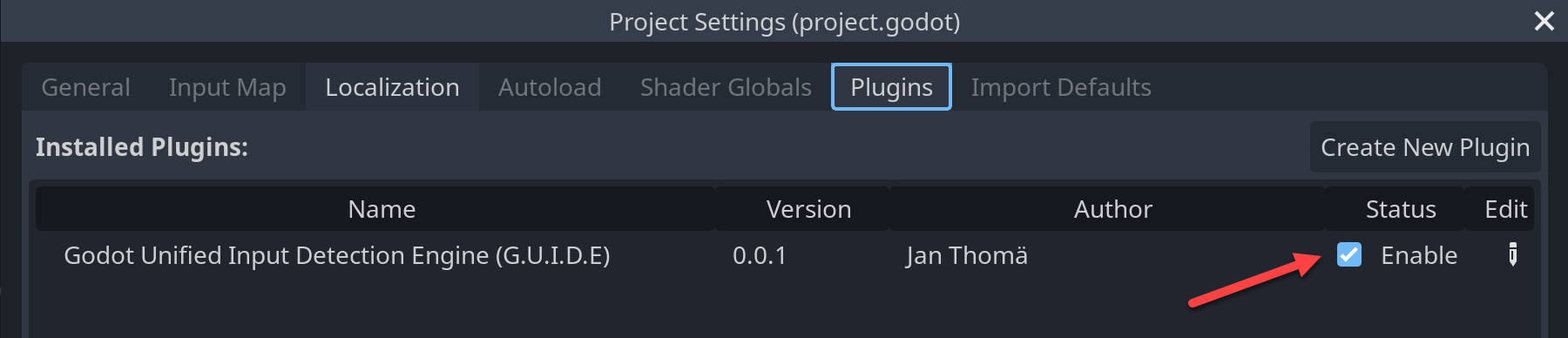
Also, please restart the Godot editor after enabling the plugin. This is required, because Godot usually doesn’t fully pick up new plugins while it’s running. If you don’t restart the editor the plugin might not work correctly or not at all.
The following video shows the installation process in detail and launches one of the examples to verify that the plugin is working correctly.
Updating from an earlier version
Before you update
Regardless of how you installed the plugin, do these steps before updating:
- Be sure you have a backup of your project or have it under version control, so you can go back in case things don’t work out as intended.
- Check the CHANGES.md for any breaking changes that might impact your project and any special update instructions.
- Close Godot. It’s important to not have the project opened while running the update.
Updating with Godot Goodie Grabber (GGG)
Run the following commands in your project directory:
ggg update
ggg sync
ggg update fetches the latest version from the asset library then installs the updated files into your project removing any stale files. You can now open the project again in Godot and continue working on it.
Updating a manual / asset lib installation
The asset library currently has no support for plugin updates. Therefore, you’ll have to manually update the plugin. This also applies if you installed manually in the first place:
- Download the version you want to install from the Release List (use the Source Code ZIP link).
- In your project locate the
guidefolder within theaddonsfolder and delete theguidefolder with all of its contents. - Unpack your downloaded ZIP file somewhere. Inside the unpacked ZIP file structure, locate the
guidefolder within theaddonsfolder. - Move the
guidefolder you located in the previous step into theaddonsfolder of your project. - The plugin is now updated. You can now open the project again in Godot and continue working on it.